
MAS System Documentation
Homepage > v-Cloud Exclusive Features > Data Archiving
Data Archiving
Before data archiving, users should:
-
Confirm that all annual settlements, reports and audits have been completed.
-
Perform a complete data backup.
-
Verify the scope and date of filing.
-
Ensure all users understand that the data is irreversible after archiving.
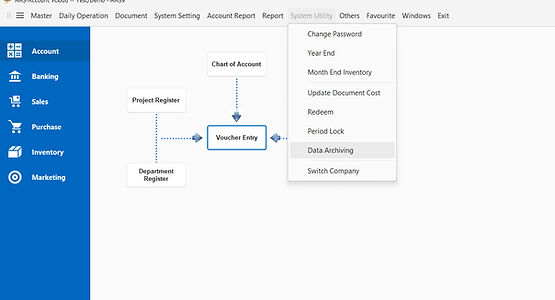

1. Function Overview
The "Data Archiving" function is used to archive data prior to a specified fiscal year, ensuring the safe preservation of historical data without affecting its normal use in subsequent years. After archiving, the historical data will be converted to read-only mode to prevent accidental modification or deletion and improve system performance.
2. Operating Procedures
2.1 Selecting a Year
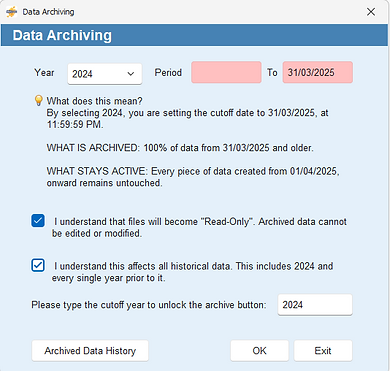
a. Select the year to be archived from the drop-down menu (e.g.,2024).
b. The system is based on the Fiscal Year:
The last day of 2024 is March 31, 2025.
Selecting "2024" means you want to archive all data up to March 31, 2025 (inclusive).
c. In other words, selecting "2024" means you want to archive all data from 31/03/2025 or earlier.
2.2 System displays the Cut-off Date
a. After selecting the year, the system will automatically display the cut-off date as: 31/03/2025 11:59:59 PM
b. Scope of archiving:
- All data prior to 31/03/2025 (inclusive) will be archived.
- All data created since 01/04/2025 will not be affected.
2.3 Confirming the Impact of Archiving
a. Check "I understand that the archived data will become read-only" to confirm that the archived data can no longer be edited or modified.
b. Check "I understand this operation will affect all historical data, including every year from 2024 to earlier" to confirm that the archiving scope covers the selected year and earlier years.
2.4 Enter the Verification Year
Enter the cutoff year (e.g., 2024) in the designated field to unlock the "Confirm" button.
2.5 Execute Archiving
a. Click [OK] to start the archiving.
b. To cancel, click [Exit (E)].
c. A prompt window will pop up showing: "Please Wait - Analyzing archive data... please wait.",

d. Once the data analysis is complete, a confirmation dialog box will appear, displaying the estimated number of records to be archived (e.g., "Analysis complete! Estimated records to archive: 3046. Confirm to archive data?").
e. Choose whether to proceed:
-
To proceed: Click [Yes],
-
To cancel: Click [No].

g. The message ”Archiving Data – This may take a while…” "Copying archive records for 2023… (this may take a while)" may also appear. Please wait patiently.

h. Once archiving is complete, the system will display: "Data Archived Successfully". Click [OK] to finish.

h. Once archiving is complete, the system will display: "Data Archived Successfully". Click [OK] to finish.
3. Archiving Operation Log
After each archiving operation, the system will automatically record an operation log including Data Archive Date, Execute & Confirm Date and Execute & Confirm By. Users can review past archiving records via the "Archived Data History" for audit trail and verification purposes.

4. Important Notes and Risk Warnings
4.1. Once archived, data becomes read-only and can only be viewed; it cannot be modified or deleted.
4.2. Archiving is irreversible. Please ensure that all data has been finalized before proceeding.
4.3. Archiving will not affect data creation and usage in the new fiscal year.
4.4. After archiving, historical data will no longer appear in the standard view. The scope of the archived data will cover the "Documents" and "Reports" for the selected year and all previous years; however, "Accounting" documents and "Accounting Reports" will not be affected. If you need to view them, you need to switch to "Archived View" mode.
4.5. Since archiving is irreversible, re-activating archived data requires contacting Technical Support and will be subject to charge in a separate quotation.
4.6. Users can determine which user groups have permission to use the "Data Archiving" and "Data View" functions through "System Settings - Security Settings - Group Settings".
5. Viewing Archived Data
5.1. View archived data: You can view it through "System Settings - Data View - Archive Data"; enter the Archive View mode.

5.2 Switch to current active data: You can access the current data through "System Settings -> Data View -> Active Data" to continue your daily work.
